How to Avoid Busy Roads and Areas When You Plan a Bike Route
Draw avoid areas on the map — circles that route suggestions go around — and choose routing profiles that prefer trails, bike paths and quiet roads.
Quick answer
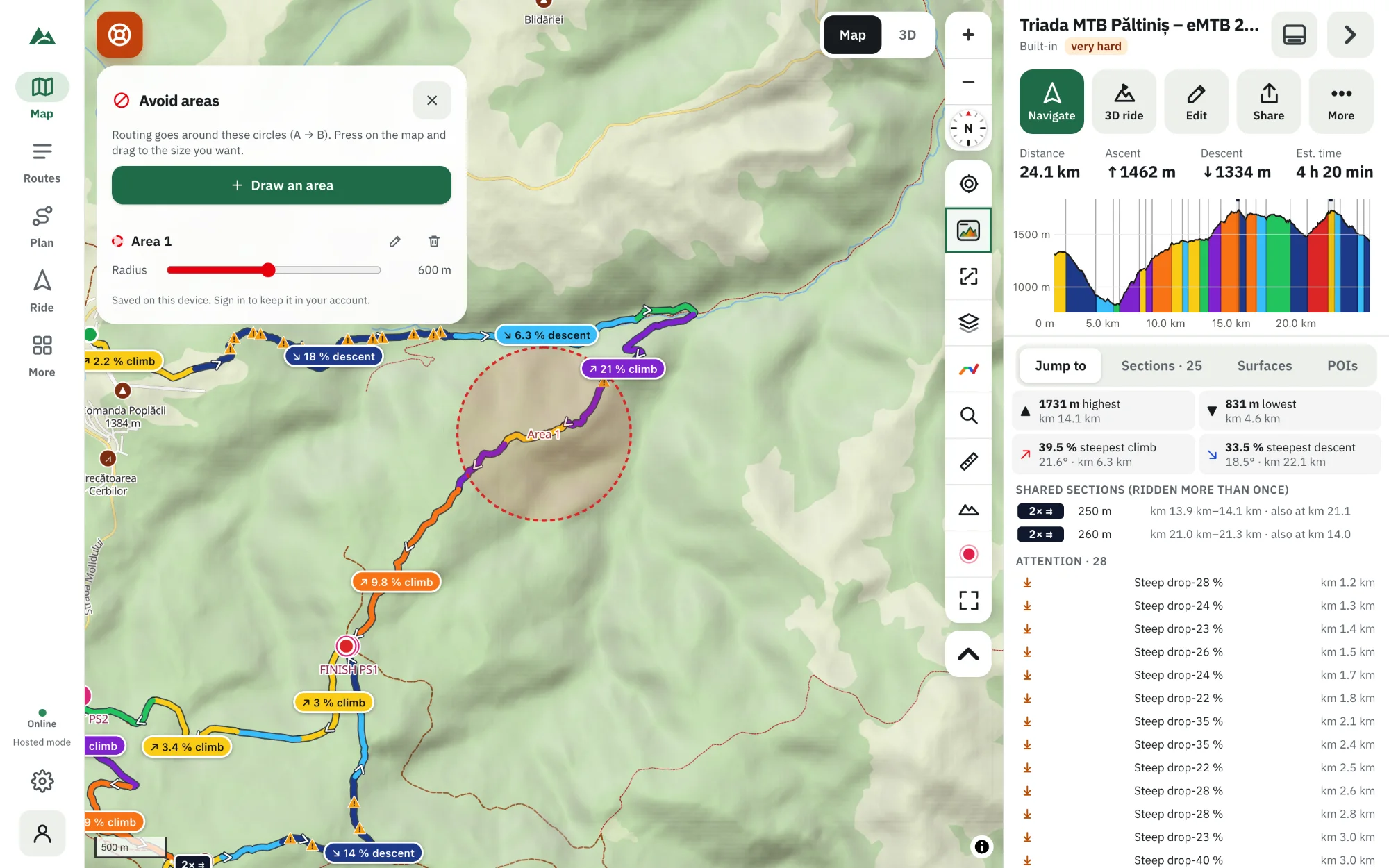
In TrailScout open Plan → Avoid areas, press Draw an area and drag a circle on the map over the road, town or trail you want to stay out of (30 m to 20 km). The A→B planner then routes around every avoid area when Use avoid areas list is on. For roads in general, pick a profile that avoids them — MTB, Gravel or Bike paths & quiet roads — or draw the leg yourself in the route builder.
Key takeaways
- Avoid areas are circles you draw; A→B suggestions go around them.
- Areas are saved — on the device, or in your account for all your devices.
- An area that contains your start, a via point or your destination is skipped automatically.
- The Attention markers show crossings of bigger roads along any route.
A good ride can be spoiled by a few kilometres on the wrong road — a fast main road with trucks, a busy tourist town, a trail closed for logging. TrailScout gives you two ways to stay out of them: routing profiles that prefer quiet ways, and avoid areas you draw yourself.
How to draw an avoid area
- Open TrailScout and press Plan → Avoid areas.
- Press Draw an area.
- Press on the map and drag — the circle grows as you drag. Let go when it is big enough (from 30 m to 20 km).
- Rename it (“Main road”, “Quarry”) and adjust the radius in the list if you like.
- Repeat for every place to avoid.
The areas are shown on the map as circles and kept in a list. They're saved on this device, or in your account (on all your devices) if you sign in.
How the planner uses them
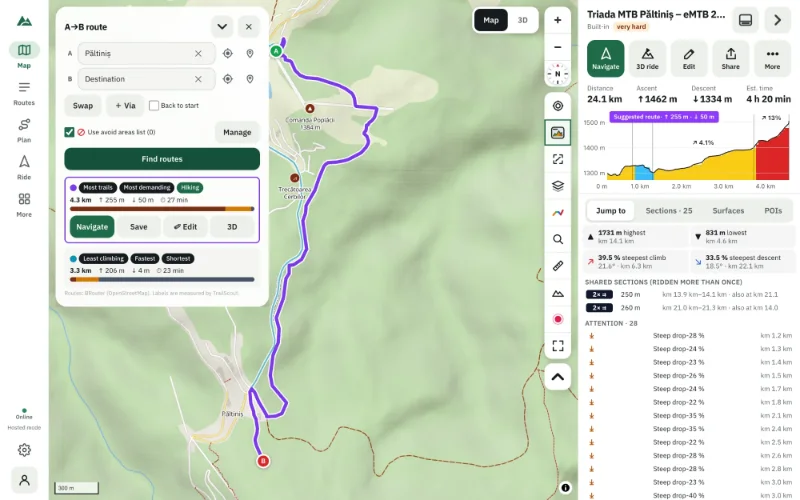
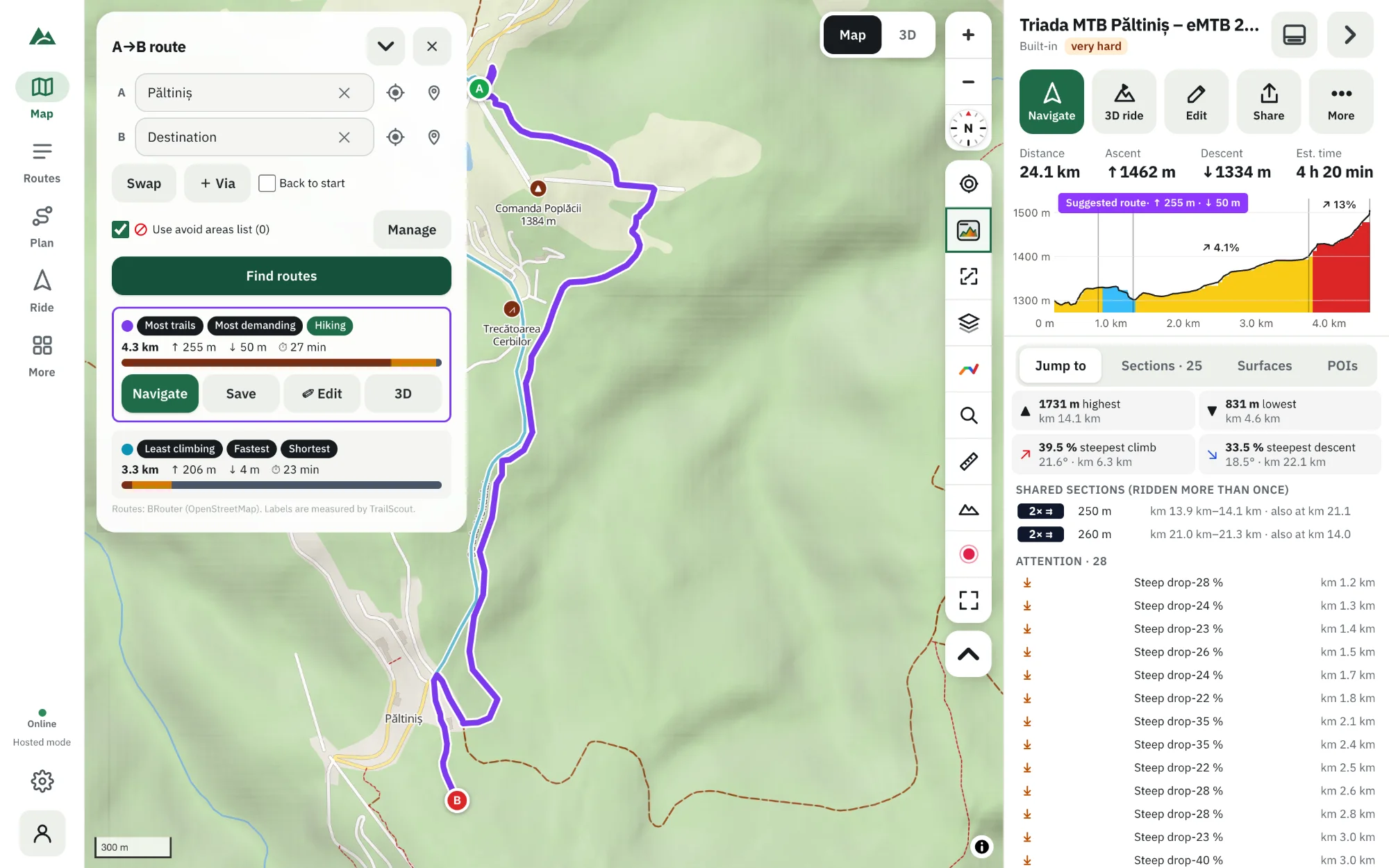
In Plan → A → B, tick Use avoid areas list. Every suggestion now goes around your areas. Manage opens the list from the planner.
If an area contains your start, a via point or the destination, it is skipped for that plan (you can't avoid the place you're going to) and the planner tells you how many were left out.
Choose a profile that avoids roads
| You want | Profile |
|---|---|
| trails, few roads | MTB (trails) |
| easier trails and tracks | MTB light |
| gravel and forest roads | Gravel |
| cycle paths and low traffic | Bike paths & quiet roads |
| footpaths only | Hiking |
The A→B suggestion labelled Most bike paths is usually the quietest; Most trails keeps off asphalt the most. See how to plan an A→B bike route.
Draw it yourself where it matters
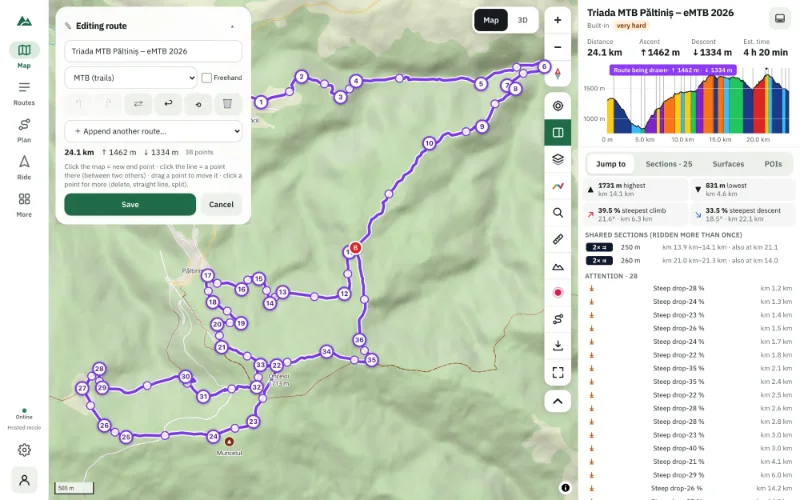
For full control, draw the critical part in the route builder: place points along the quiet road you want and the line follows it. Use Freehand for a path the map doesn't know.
Check a route for road crossings
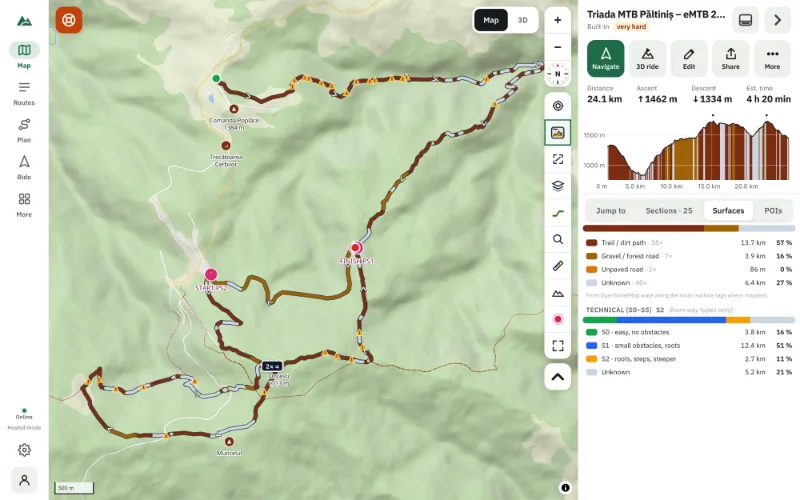
The Attention markers on the map flag crossings of bigger roads along any route (as well as steep drops, hairpins and gaps in the track). Check them before a family ride. See how to rate a route's difficulty.
Frequently asked questions
Do avoid areas work in the route builder?
They are used by the A→B planner. In the builder you choose the line yourself point by point.
How big can an avoid area be?
From 30 m to 20 km radius.
Are my avoid areas private?
Yes. Without an account they stay on your device; with an account they're kept in your account, visible only to you.
Can I avoid a whole road, not just a circle?
Draw several circles along it, or pick a profile that prefers trails or quiet roads so the road isn't chosen in the first place.
Try it on your next ride
TrailScout is free, needs no account and keeps your routes on your device. It runs in the browser on phones, tablets and computers — and works offline.
Open TrailScout →