How to Edit a GPX Route: Add, Move and Remove Waypoints
Change an imported GPX route on the map: move points, add legs that follow trails, trim, reverse, split or merge — and keep every earlier version.
Quick answer
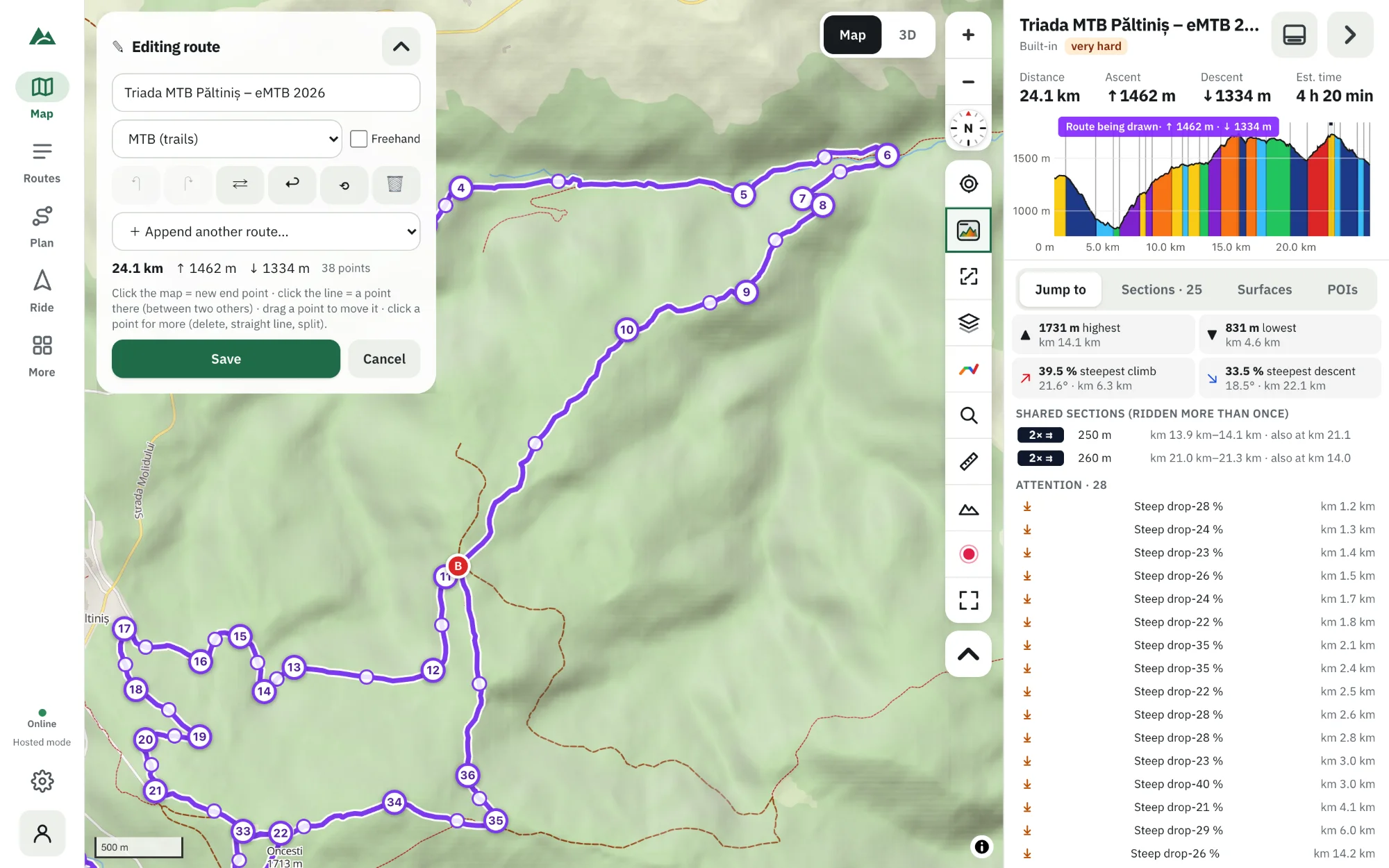
Import the GPX file into TrailScout, open it and press Edit. Drag any point to move it — the line between points follows trails and roads again — click the line to add a point, click a point to delete it, make a straight line to it or split the route there. Reverse, trim, append another route, then Save: the previous version is kept under Versions, and you can export the result as GPX.
Key takeaways
- Any imported GPX can be edited in the same route builder used to draw new routes.
- Each saved change keeps the previous version — up to 20 — ready to restore.
- Points you mark on a route (“Mark a spot here”, pinned POIs) are saved in the GPX as waypoints.
- Split one route into two, or append another route to merge them.
You found a great route, but it starts on the wrong side of town, uses a road you'd rather avoid, and misses the viewpoint everyone talks about. Here is how to change any GPX route on the map without starting from scratch.
How to edit a GPX route
- Import the GPX file into TrailScout and open it.
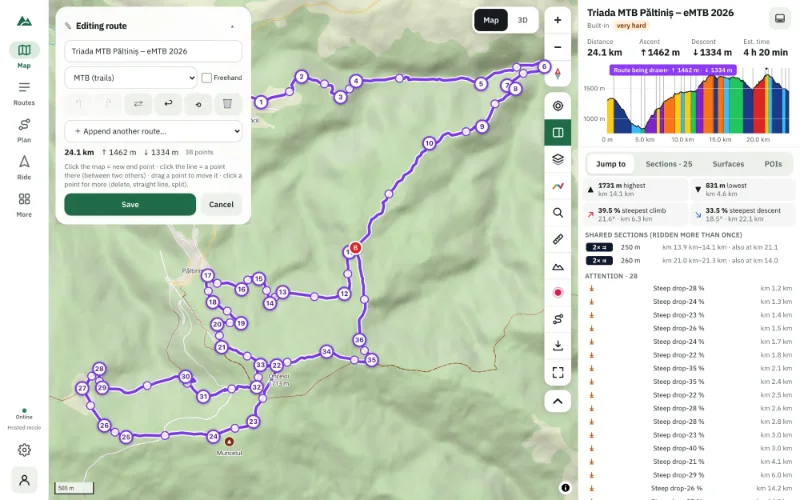
- Press Edit in the route panel. The route becomes waypoints and legs in the route builder.
- Move a point: drag it. The legs on each side are routed again along trails and roads.
- Add a point: click the line where you want it (or drag the small handle in the middle of a leg).
- Delete a point: click it and choose Delete point.
- Straight line: click a point and choose Straight line to here for a path the map doesn't know.
- Press Save.
The routing profile in the panel (MTB, gravel, hiking…) decides how new legs are found. See how to plan a route that follows trails.
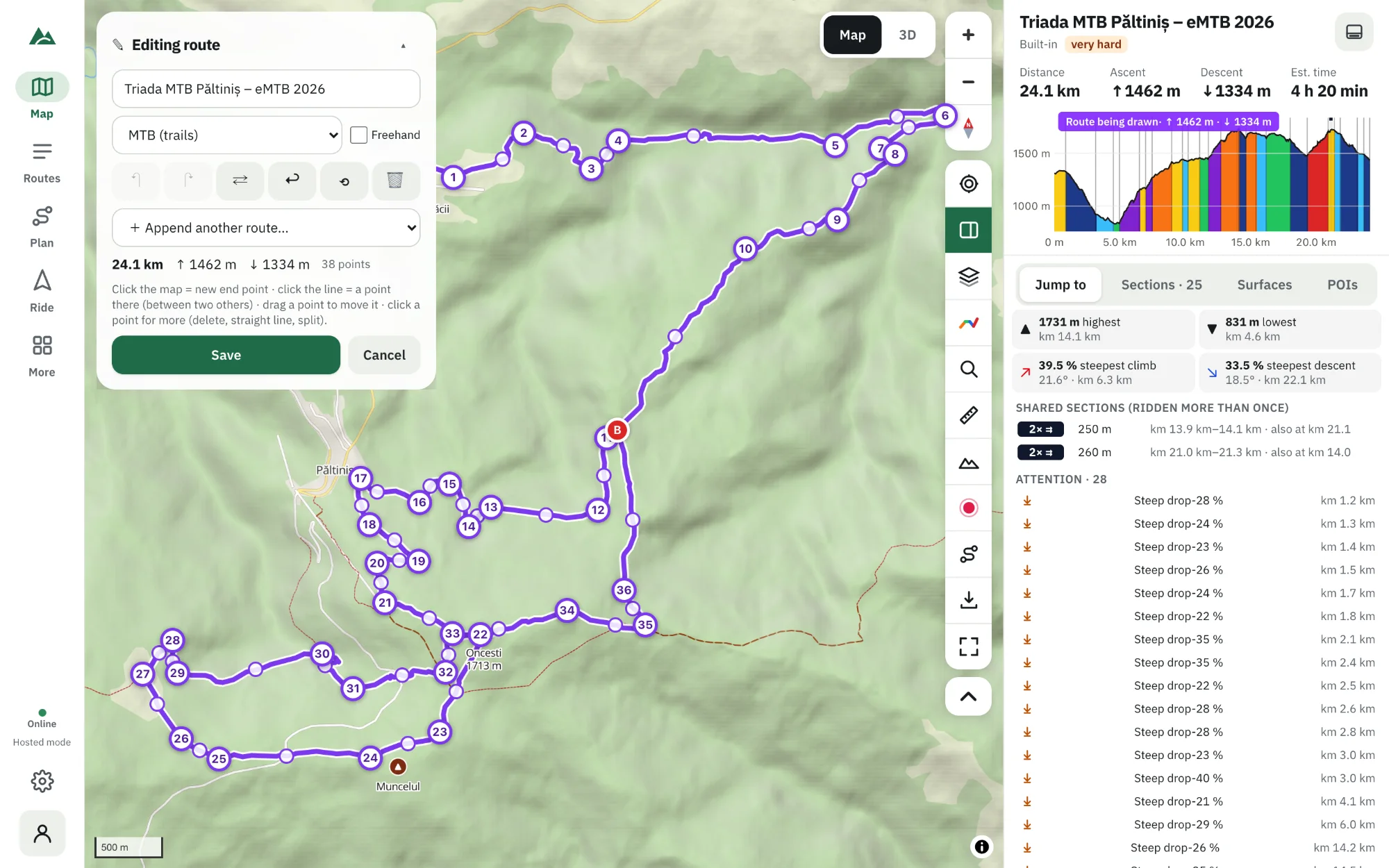
Bigger changes
| You want to… | Do this |
|---|---|
| ride it the other way | Reverse the route |
| cut off the start or end | delete the first or last point |
| make it a loop | Back to the start (loop) |
| come back the same way | Out and back |
| make two routes from one | click a point → Split the route here |
| join two routes | Append another route… and pick one from your library |
| undo a change | Undo / Redo |
Waypoints: mark places on the route
Points of interest you want in the GPX — a spring, a hut, a tricky junction:
- Right-click (or long-press) the map near the route → Mark a spot here, give it a name and a note.
- In the POIs tab, pin a point of interest to the route.
- On a place card, Mark on route.
They are exported as GPX waypoints, so your bike computer or watch shows them too, and Bike GPS announces them as you approach.
Name, description and tags
Details in the route menu sets the route's name, a description, tags and the difficulty. They're kept with the route and the name goes into the GPX.
Versions: nothing is lost
Every Save in the builder keeps the previous version. Open Versions in the route's menu to see the last 20 with their dates and Restore any of them (the current one becomes a version too). Want a separate copy instead? Duplicate the route first.
Export the edited route
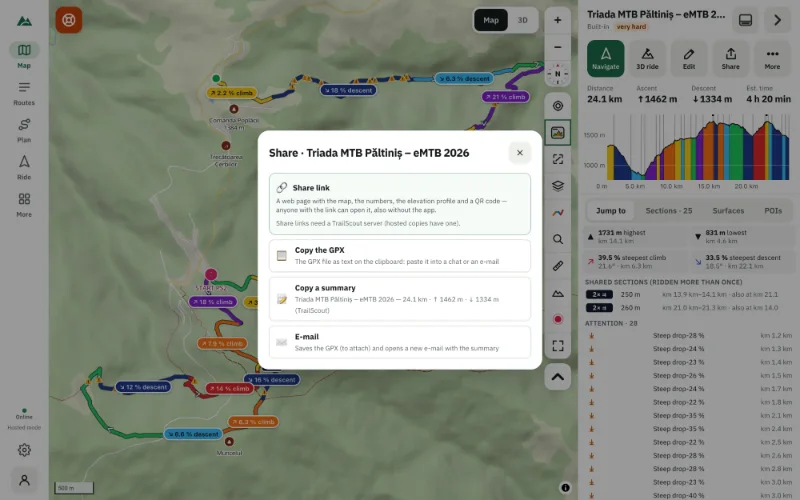
When you're happy, export it as GPX for your device or share it. See how to export a route as GPX.
Frequently asked questions
Will editing change the original GPX file on my computer?
No. The imported copy in TrailScout changes; the original file stays as it was. Export a new GPX when you're done.
Can I edit a recorded ride?
Yes, like any route. Recordings with several days keep their days as stages.
Does editing keep the heights from the GPX?
Edited legs get heights from the terrain model. You can switch the whole route between GPX and terrain heights in its details.
How do I merge two GPX files?
Import both, open the first, press Edit, then Append another route… and choose the second.
Try it on your next ride
TrailScout is free, needs no account and keeps your routes on your device. It runs in the browser on phones, tablets and computers — and works offline.
Open TrailScout →