How to Open and View a GPX File Online (Map, Profile and 3D)
Drag a GPX file into your browser and see the route on a map, its elevation profile, climbs, surfaces and a 3D flyover — free, private, no upload.
Quick answer
Open TrailScout in Chrome, Edge or Safari and drag the .gpx file anywhere onto the window, or use Routes → Import GPX. The route appears on the map with its distance, ascent, elevation profile, climbs and descents; press the 3D tab to fly over it. The file is read in your browser and stays on your device — nothing is uploaded, and no account is needed.
Key takeaways
- Drag and drop: several GPX files at once, big files too (they are read in the background).
- The file is processed in your browser — it is never uploaded.
- Tracks, routes and waypoints are read; heights come from the file or from the terrain model.
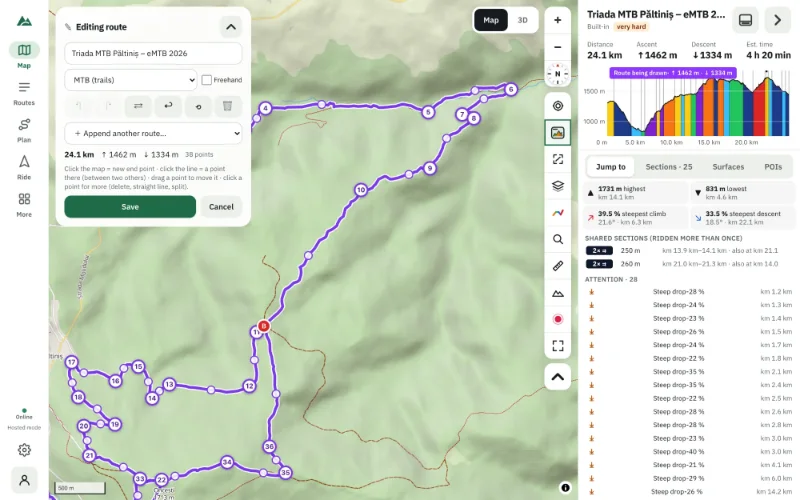
- Every imported route can be edited, exported again as GPX and viewed in 3D.
GPX is the common language of outdoor routes: every GPS device, watch, cycling computer and route website can export it. But a .gpx file on its own is just text. To see what is in it — where it goes, how hard it is — you need a viewer. Here is how to open one in your browser in a few seconds.
How to open a GPX file
- Open TrailScout in Chrome, Edge or Safari (phone, tablet or computer).
- Drag the .gpx file anywhere onto the window. Or press Routes → Import GPX (key O) and choose the file.
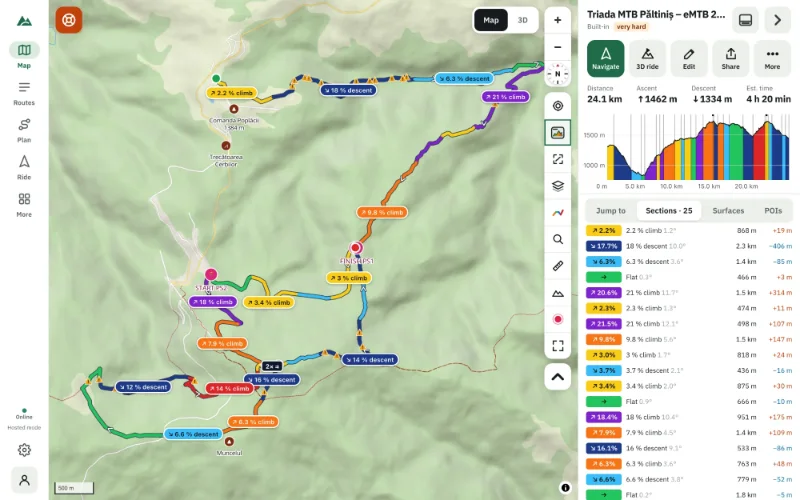
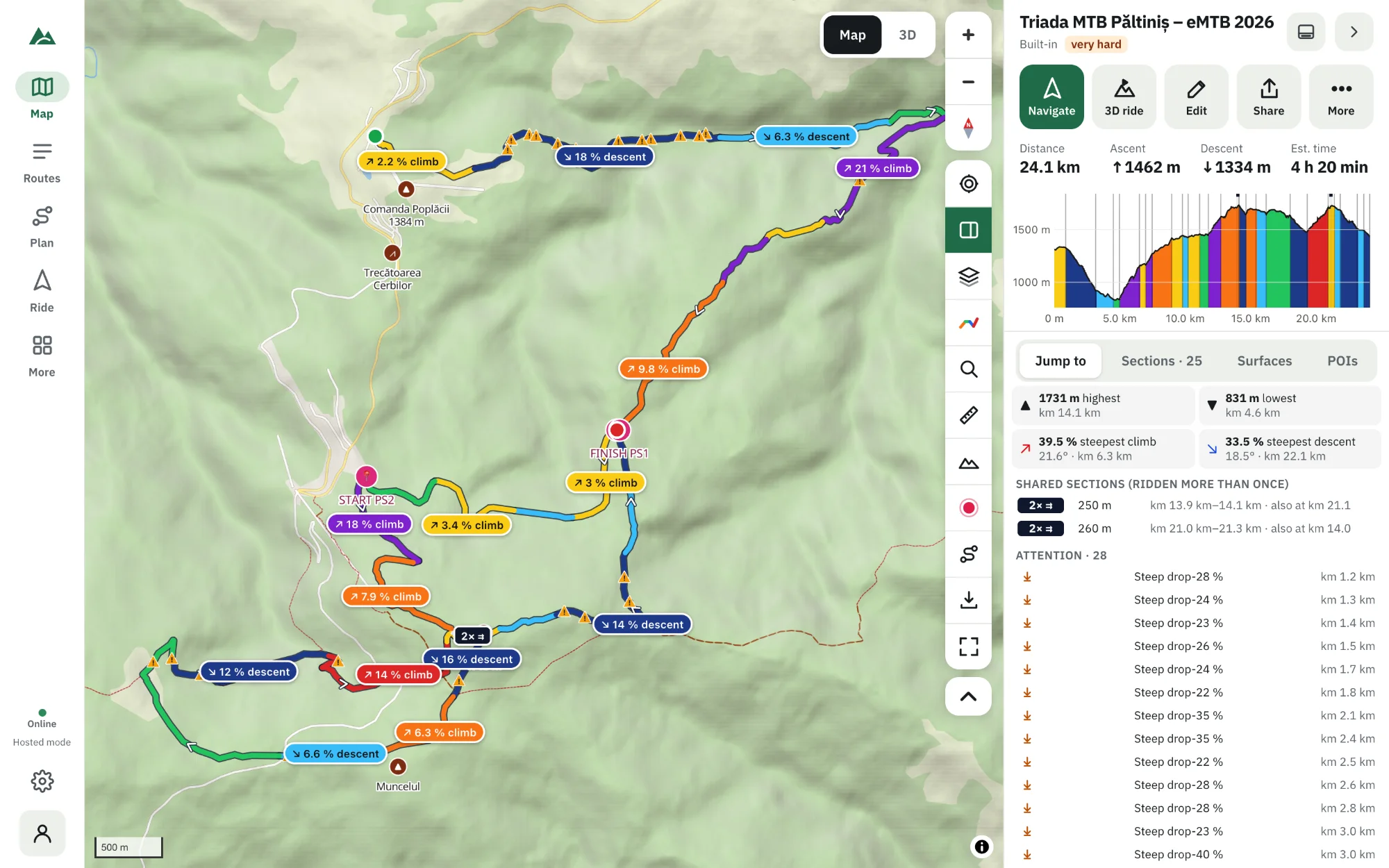
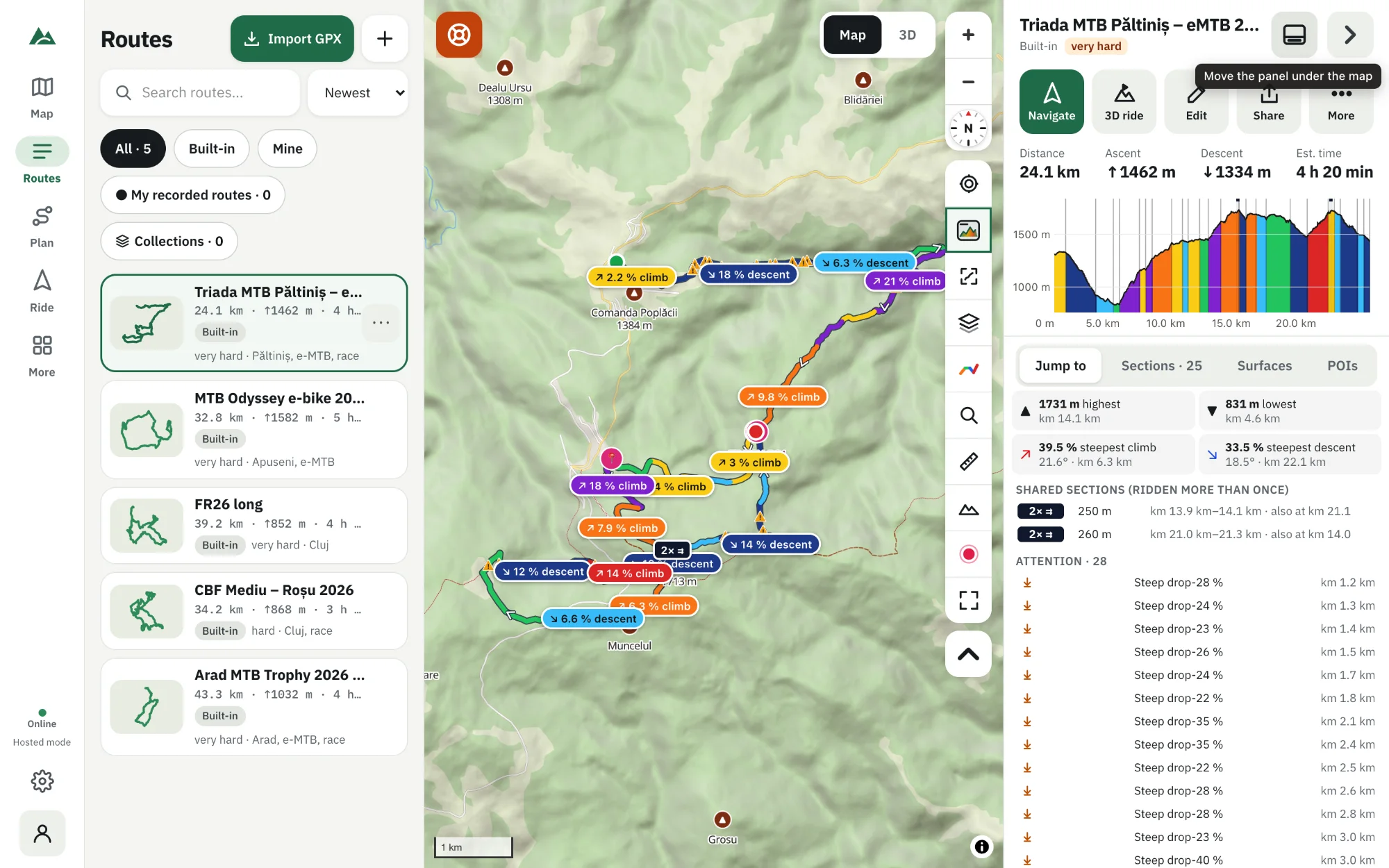
- The route opens on the map, fitted to the screen, with its numbers and elevation profile.
- Drop several files at once to import a whole folder of rides.
On a phone, Import GPX opens the file picker; on Android you can also share a GPX file from another app straight to TrailScout once it is installed.
What you see
- The route on the map, coloured by climbs and descents (or by gradient, surface, or one colour — key G), with direction arrows.
- The numbers: distance, ascent, descent, max gradient, estimated time and difficulty.
- The elevation profile: hover it to read heights and gradients. See how to read an elevation profile.
- Jump to: highest point, steepest climb and descent, the biggest climbs.
- Sections, Surfaces and POIs tabs.
- Waypoints from the file, shown on the map with their names.
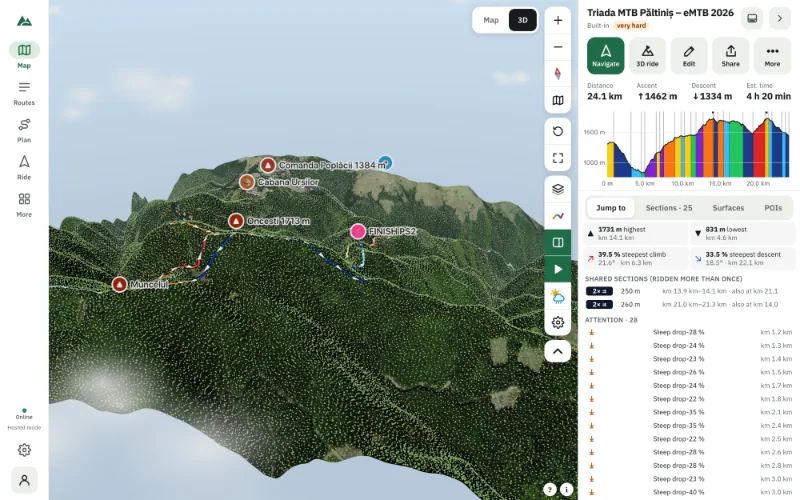
- 3D: press V to fly over the route in 3D.
Private by design
The GPX file is read in your browser. It isn't uploaded to any server; the route is stored in your browser's own storage on this device. Map tiles, terrain heights and the like are fetched for the area you look at — the file itself never leaves your device unless you share or export it.
Files with problems
- No heights? They're added from the terrain model automatically.
- Noisy heights (a phone recording that shows far too much climbing)? A “noisy?” hint appears; switch the elevation source to Terrain in the route's details.
- Very big files (long recordings with hundreds of thousands of points) are read in the background so the page stays responsive.
- Gaps where the recording stopped are shown as Attention markers.
After opening
Edit it in the route builder, export it again for your device, download an offline area around it, or start Bike GPS to follow it.
Frequently asked questions
Is it safe to open my GPX files online?
With TrailScout the file is processed locally in your browser and never uploaded. Your routes stay on your device.
Can I open GPX files on an iPhone?
Yes. Open TrailScout in Safari, press Import GPX and choose the file from Files.
What is in a GPX file?
Tracks (the recorded or planned line, with points that can carry height and time), routes (a list of route points) and waypoints (named places). TrailScout reads all three.
Can I open other formats?
TrailScout imports GPX and its own JSON files. Most apps and devices can export GPX.
Try it on your next ride
TrailScout is free, needs no account and keeps your routes on your device. It runs in the browser on phones, tablets and computers — and works offline.
Open TrailScout →