How to See the Elevation Profile of Any Hiking or MTB Trail (Free, No Account)
Open a GPX file or draw a route and get its elevation profile in seconds — climbs, descents, gradients and total ascent, free in your browser, no account.
Quick answer
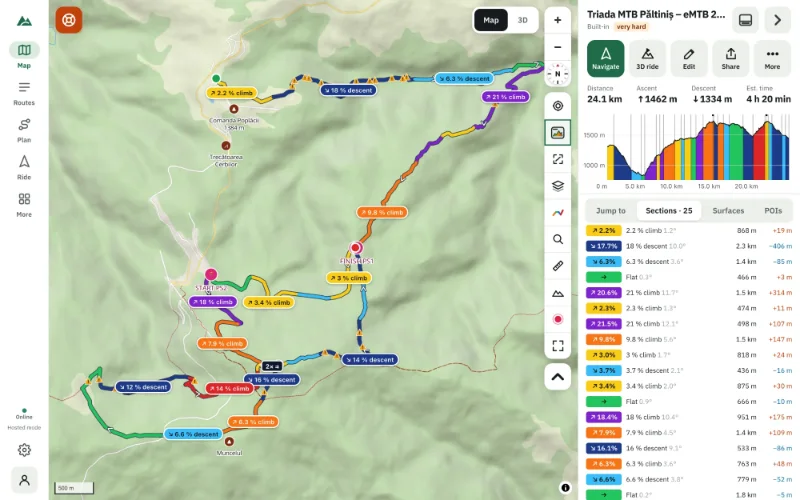
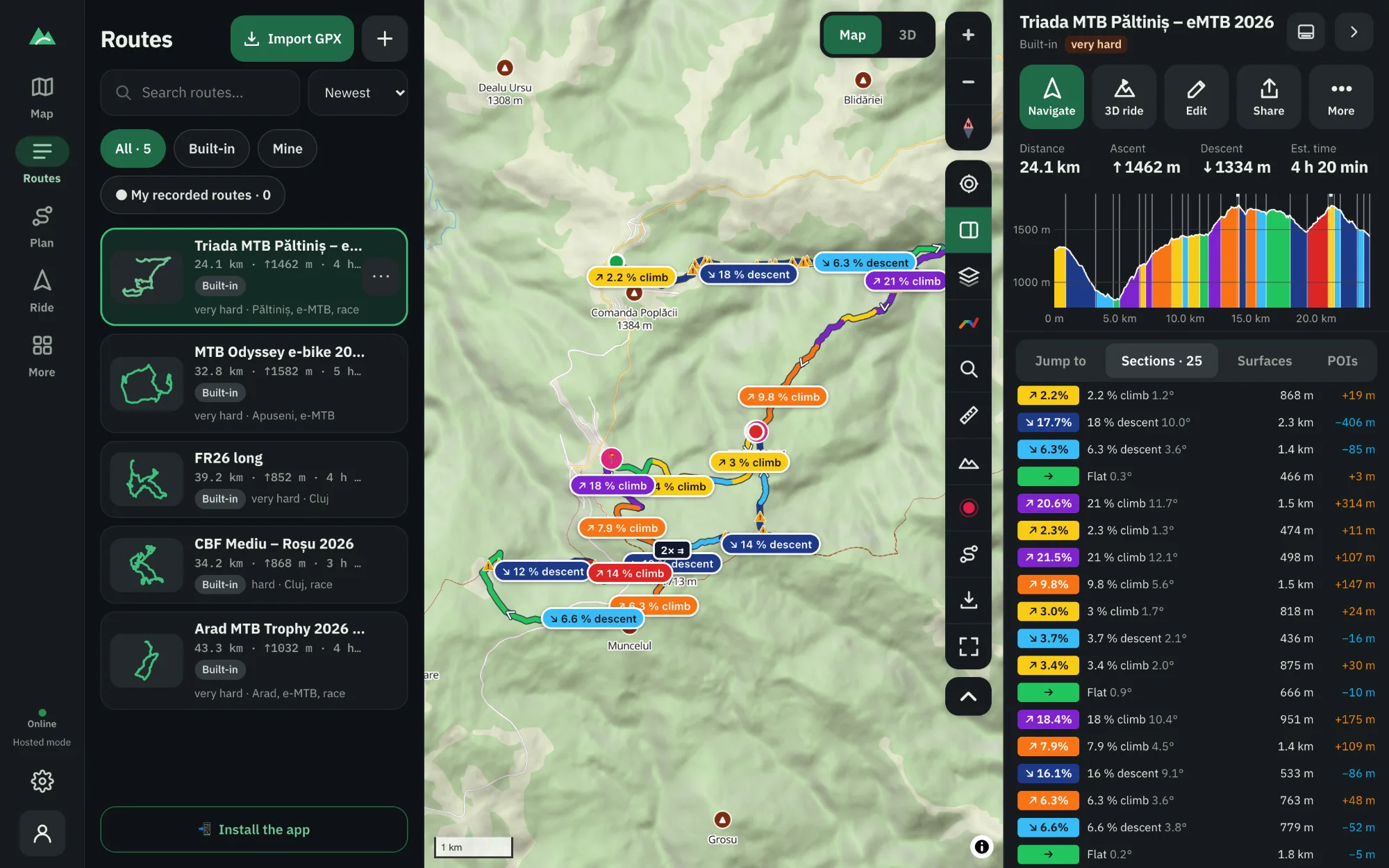
To see the elevation profile of a trail, open TrailScout in your browser, import the trail's GPX file (or draw the route on the map) and the profile appears under the map at once: distance on the bottom, height on the side, every climb and descent coloured by gradient. Hover or tap the profile to see the exact height and gradient at any point. If the file has no heights, TrailScout takes them from a terrain model automatically.
Key takeaways
- Import a GPX file or draw a route — the elevation profile appears instantly, free and without an account.
- The profile is coloured by gradient, from steep descents (below −8 %) to walls (above 15 %).
- No heights in the file, or noisy ones? Switch the elevation source to Terrain.
- Tap the profile to jump on the map; jump straight to the highest point or the steepest climb.
An elevation profile is a side view of a route: how high you are at every kilometre (or mile) of it. It is the quickest way to know whether a ride is a gentle loop or a day of hard climbing — and where the hard part is. Here is how to get one for any trail, free, in a few seconds.
What you need
- The route. A GPX file (exported from a GPS device, a watch, a website or another app), or nothing at all — you can draw the route on the map.
- A browser. TrailScout runs in Chrome, Edge or Safari on a phone, tablet or computer. There is nothing to install and no account to create.
How to see the elevation profile of a trail
- Open TrailScout and go to Routes.
- Press Import GPX (or drag the
.gpxfile anywhere onto the window). Several files at once work too. - The route opens on the map and its elevation profile appears in the route panel, with the distance, ascent, descent and maximum gradient above it.
- Move the mouse over the profile (or drag a finger along it): a marker follows on the map and shows the height, the distance and the gradient at that point.
- Click or tap a point on the profile to move the map there.
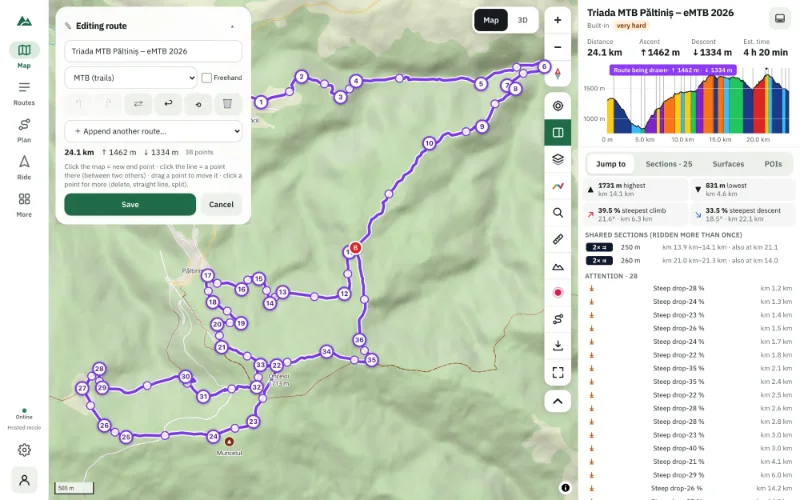
No GPX file? Use Plan → Draw a route and click the map point by point: the line follows trails and roads and the profile grows with every click. See how to plan a route that follows real trails.
How to read what you see
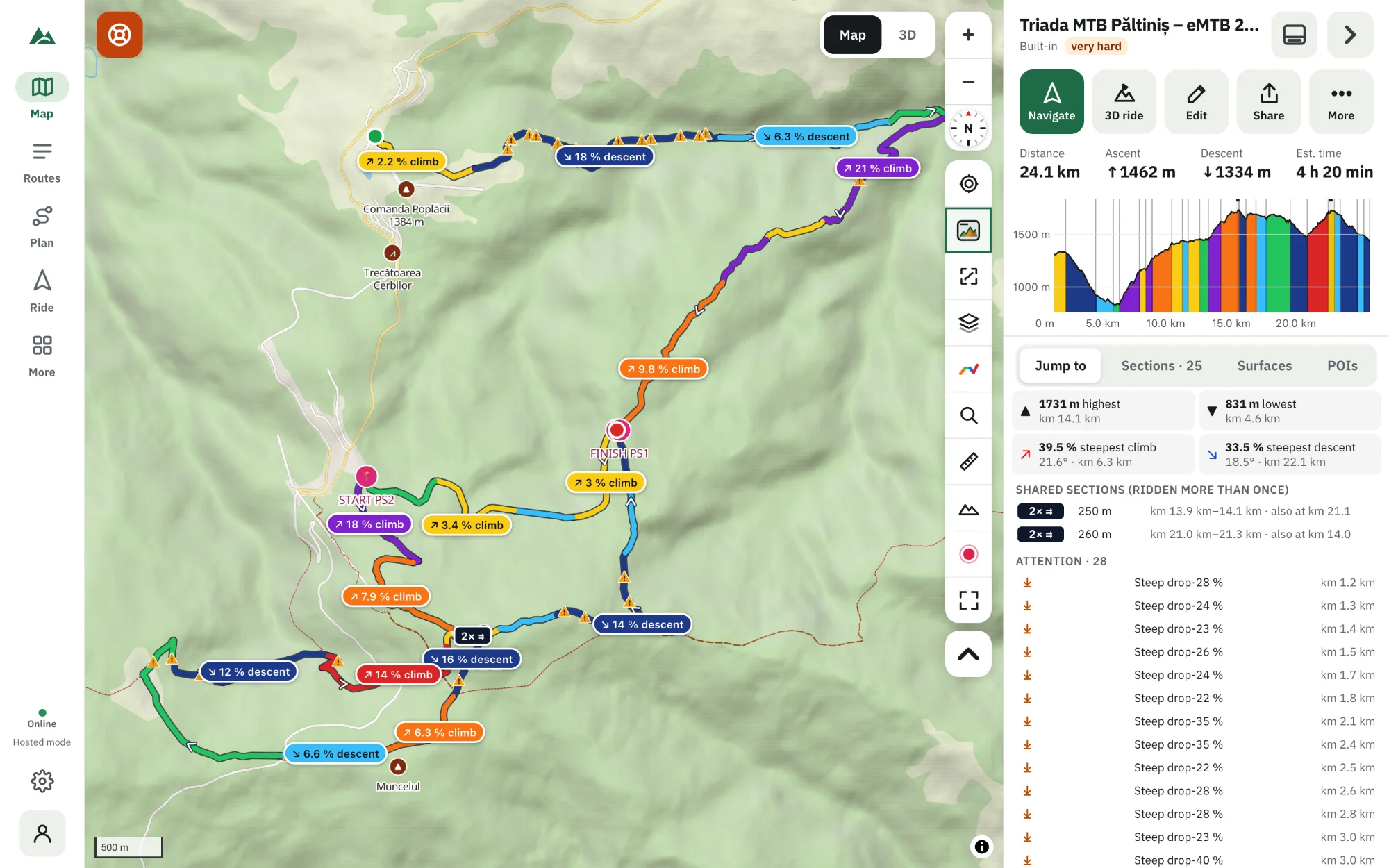
The profile is coloured by gradient, the steepness of each stretch, in seven classes:
| Colour class | Gradient | What it feels like |
|---|---|---|
| Steep descent | below −8 % | brakes on, weight back |
| Descent | −8 to −2 % | free speed |
| Flat | −2 to 2 % | steady pedalling |
| Climb | 2 to 6 % | a long road climb |
| Hard climb | 6 to 10 % | low gears, steady effort |
| Steep climb | 10 to 15 % | hard, short sections |
| Wall | above 15 % | many riders walk |
Above the profile you get Ascent and Descent (all the climbing and descending, ignoring bumps under 3 m / 10 ft that come from GPS noise), the highest and lowest point and the maximum gradient. For a deeper explanation, read how to read an elevation profile.
When the file has no heights (or bad ones)
Some GPX files come without elevation, and heights recorded by phones are often noisy — a little jitter every second adds up to hundreds of metres of “climbing” that never happened. TrailScout handles both:
- A route without heights gets them from a terrain model automatically (about 13 m / 43 ft pixels).
- When the heights look noisy, a “noisy?” hint appears. Open the route's details and switch the elevation source from GPX to Terrain: ascent, gradients, colours and climbs are all recalculated.
Jump straight to the interesting parts
Under the profile, Jump to lists the highest and lowest point, the steepest climb and descent and the five biggest climbs and descents. One tap moves the map (and the 3D view, if it is open) there. The Sections tab splits the whole route into climbs, descents and flat parts — see how to find every climb before you ride.
Frequently asked questions
Is it free to see a trail's elevation profile?
Yes. TrailScout is free, has no ads and needs no account. Your routes stay in your browser on your device.
Can I see the elevation profile without a GPX file?
Yes. Draw the route on the map with Plan → Draw a route, or ask for suggestions between two places with A → B. The profile is built from the terrain model as you draw.
Why is the ascent different from what my GPS watch says?
Devices count climbing differently. TrailScout's Ascent ignores rises under 3 m to filter GPS noise; Elevation gain (in the details) adds up every rise without filtering and is usually a little higher. Switching the source to Terrain removes recording noise altogether.
Does it work on a phone?
Yes. On a phone the profile sits in the route panel under the map; drag a finger along it to read the heights.
Can I see the profile in metres or in feet?
Both. Choose metric (kilometres and metres) or imperial (miles and feet) in Settings — the whole app follows.
Try it on your next ride
TrailScout is free, needs no account and keeps your routes on your device. It runs in the browser on phones, tablets and computers — and works offline.
Open TrailScout →