Keep Your Phone Screen On While You Navigate by Bike
Why web pages lose GPS when the phone locks, how TrailScout keeps the screen awake while navigating or recording, and how to make the battery last.
Quick answer
Phones pause GPS for web pages when the screen locks, so TrailScout keeps the screen awake while Bike GPS or recording is running. To make the battery last, turn on the Battery saver (the map moves every few seconds, no animation, flat view), the Darker map for OLED screens and the Night version at dusk, lower the screen brightness, download an offline area so the phone doesn't search for signal, and carry a small power bank.
Key takeaways
- Web pages can't track GPS with the screen locked — TrailScout asks the phone to keep the screen on.
- Battery saver, darker map and night version reduce screen and processor power.
- Offline areas save battery in poor coverage — the phone stops hunting for signal.
- A small power bank is still the simplest way to ride all day.
The most common question about phone navigation on a bike: “Why did it stop tracking when the screen went off?” — followed by: “How do I make the battery last?” Here are both answers.
Why the screen must stay on
Apps installed from an app store can keep using GPS in the background. Web pages can't: when the screen locks, the browser pauses the page and its GPS. That's a privacy protection, and it applies to every web app.
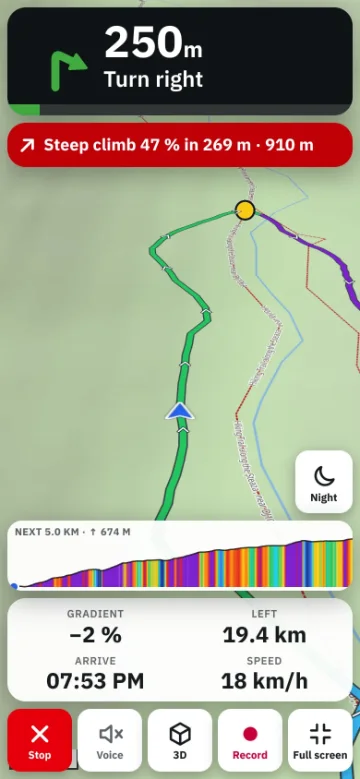
So while Bike GPS or recording runs, TrailScout asks the phone to keep the screen awake (the browser's wake lock). You don't need to change the phone's auto-lock setting. If you switch to another app or lock the phone yourself, tracking pauses until you come back; a recording is restored if the page reloads.
Make the battery last
| Setting | Where | What it saves |
|---|---|---|
| Battery saver | Settings → Navigate | the map moves every few seconds, no animation, flat view, normal resolution |
| Darker map | with the battery saver | OLED screens use less power for dark pixels |
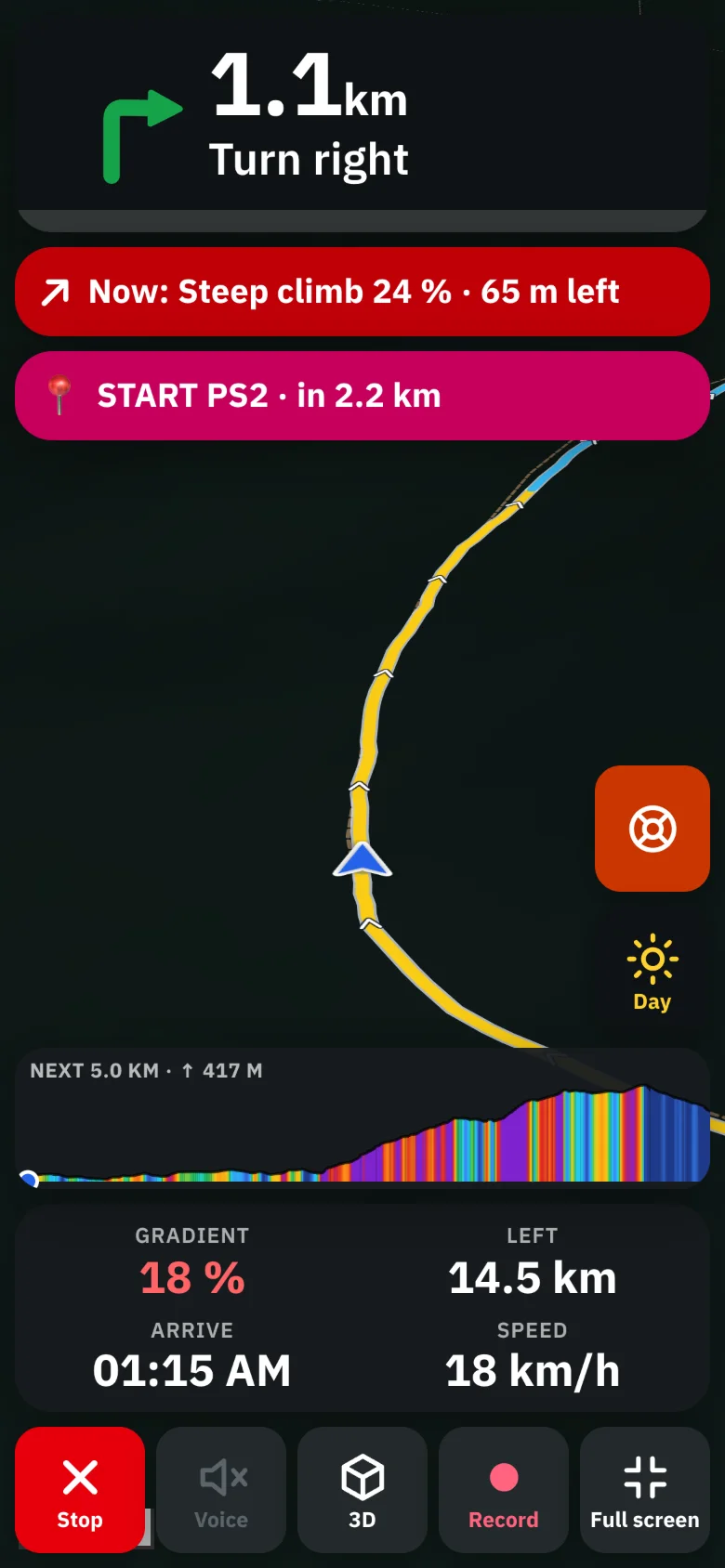
| Night version | Settings → Navigate (Auto, Always, Off) | dark map and screen; Auto switches at dusk and dawn |
| Screen brightness | your phone | the screen is the biggest consumer |
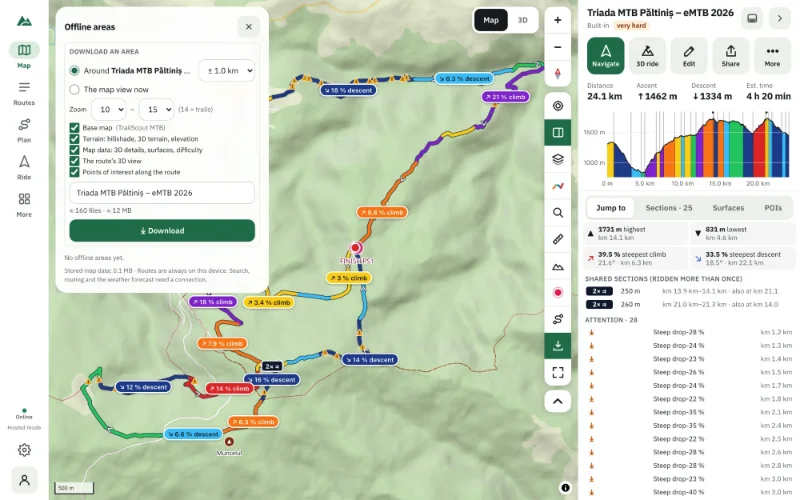
| Offline area | More → Offline areas | no hunting for signal in poor coverage |
| Elevation profile hidden | Settings → Navigate | a little less drawing |
The night version
At dusk, the night version switches the map and panels to dark colours, easy on the eyes and the battery. Auto uses the sunset and sunrise times where you are; you can also set it to always on, or off, or tap Night / Day while riding.
A setup that lasts a day
- Download an offline area for the route at home.
- Turn on the battery saver and the darker map.
- Set brightness as low as you can still read in sunlight.
- Turn off what you don't need: Wi-Fi scanning, Bluetooth if unused.
- Carry a small power bank and a short cable; top up at lunch.
Frequently asked questions
Will the screen turn off if I use another app?
Yes — the wake lock only applies while TrailScout is on screen. Come back to it and navigation continues.
Does keeping the screen on damage the phone?
No. Modern screens handle it; use the night version or a dark map to reduce heat and battery use.
Can TrailScout record with the screen off?
No. Web pages lose GPS when the phone locks. Keep the screen on while recording or navigating.
When does the night version switch on?
In Auto, at dusk where you are, and back to day at dawn.
Try it on your next ride
TrailScout is free, needs no account and keeps your routes on your device. It runs in the browser on phones, tablets and computers — and works offline.
Open TrailScout →